
Design
Importing artwork
Import SVG, PNG or JPG files, connect Canva to browse and import your designs, or use OGraf.
You don't have to rebuild what your designer already made. The Import page is split into three tabs: Import File, OGraf and Canva.
Import File — SVG, PNG or JPG
- 1Export your design as SVG from Canva, Illustrator or Figma — or grab a PNG or JPG.
- 2Open the Import File tab and drop the file in.
- 3SVG text stays editable as text layers, so you can bind names and scores to them straight away.
Convert exotic effects (mesh gradients, blend modes) to flat shapes before exporting — those don't survive the trip.
Canva
- 1Open the Canva tab and click Connect Canva, then approve on Canva's site. Each person connects their own Canva account and only ever sees their own designs.
- 2Browse your Projects folders with the breadcrumb at the top, or switch to the Recent tab for everything newest-first. The search box filters your designs, and Load more reveals long lists.
- 3Click a design to open the page picker, select the page you want, then press Import. A progress bar shows while it comes in.
The imported page lands in your organization's asset library, ready to add to a playout list. Canva imports arrive as images (PNG), so their text isn't editable — if you need live data binding, rebuild the text as miriGFX text layers on top.
Real example: select a page and check the imported result
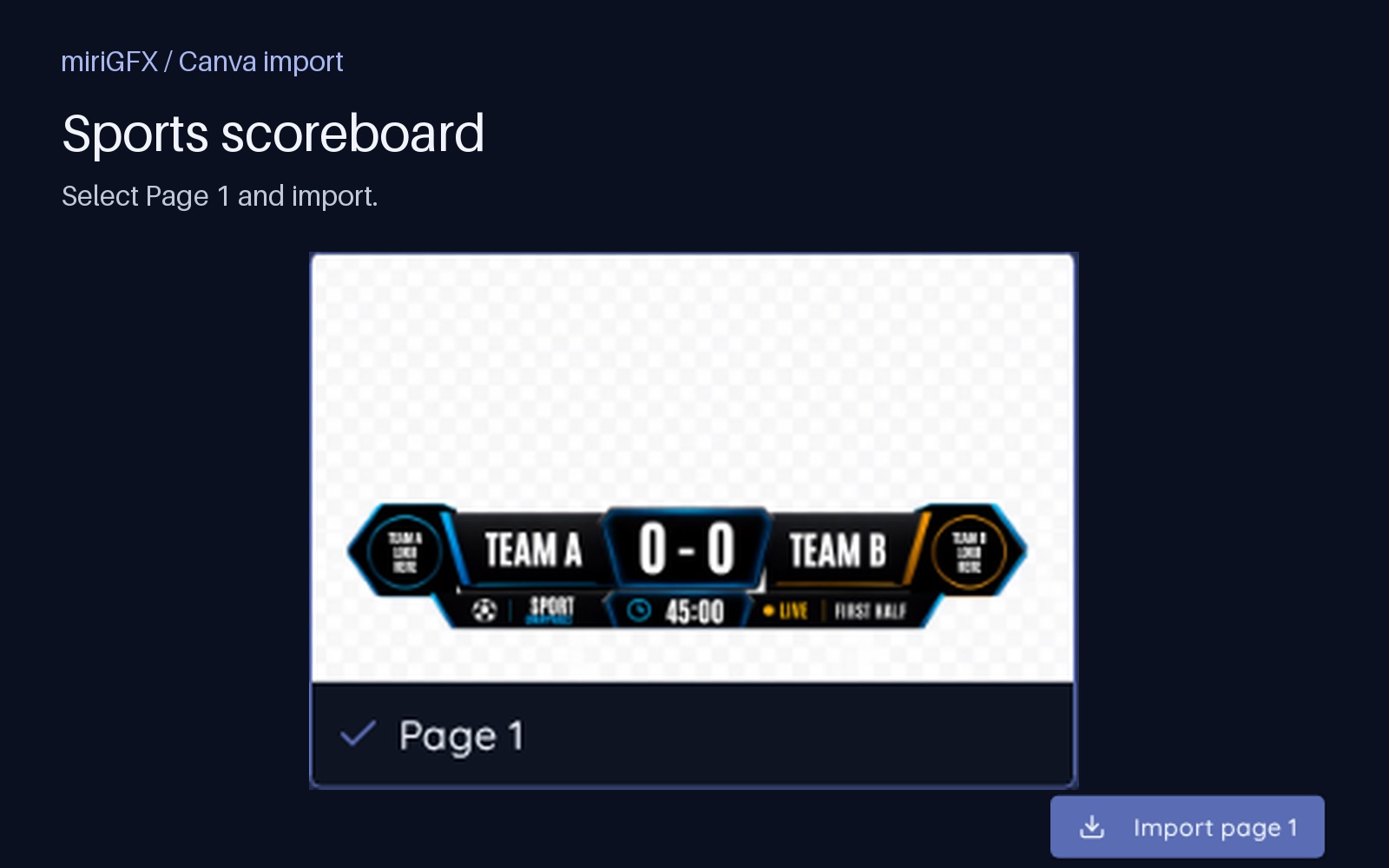
In this example we connected the authorized Canva account, opened Sports scoreboard templates, selected Page 1 and clicked Import page 1. The checkmark identifies the selected page. Import stays unavailable until a page is selected.
Wait for the import to finish. The editor opens with a layer named Artwork, and the graphic is saved in My Graphics / Templates. Check its canvas size and transparency before adding it to a show's playout list. This is the actual result of the import above:
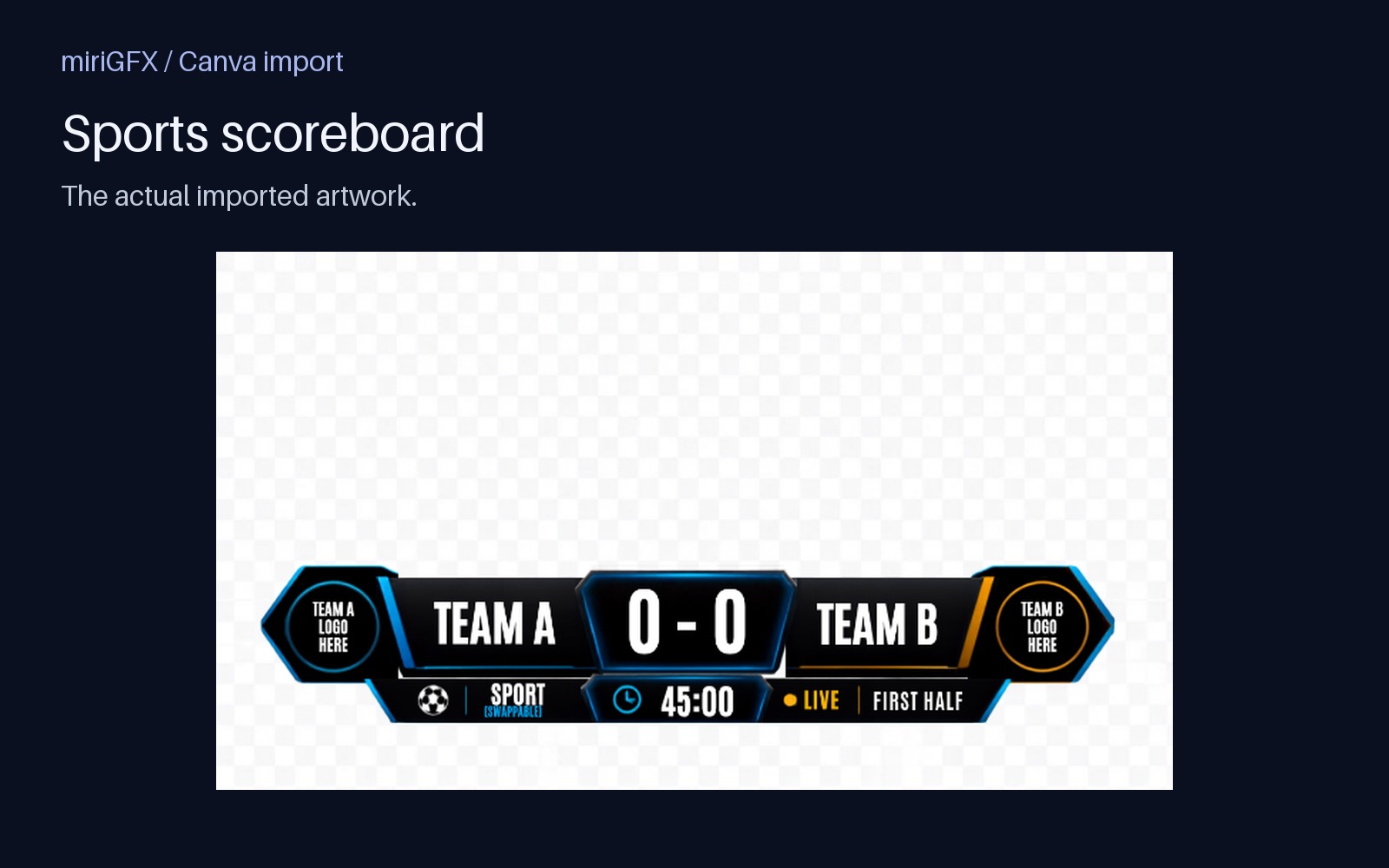
To use it in a show, open the show, choose Add to playout list, select the imported graphic under Templates, and add it. Select its row to inspect Preview; Take sends it to the selected overlay layer. Importing alone never takes the graphic live.
Importing a whole presentation
When a design has more than one page, the page picker shows two extra buttons under Import as presentation:
- Video (keeps Canva timing) — Canva turns the whole deck into a 1080p video with its animations and slide timings. It plays as one graphic. Long decks can take a minute or more to prepare and count toward your storage.
- Timed slides — every page comes in as one graphic that steps through the slides. Choose Auto-advance to set how many seconds each slide stays up (5 by default), or turn it off for manual control. Auto-timed presentations loop from the first slide each time they're taken.
Either way the new presentation opens in the editor, then add it to a show like any other graphic.
Running slides manually
Turn off Auto-advance when importing, or later from the graphic's Slides…menu. Take the presentation to an overlay and its row shows Previous and Next controls. The live slide stays on Program while the following slide is automatically cued on Preview. Advancing updates cloud screens and the Local Hub together.
PowerPoint presentations
On the Import File tab choose Import a PowerPoint and pick a .pptx file. Select the slides to include, then choose Auto-advance (PowerPoint's "advance after" timings are used when present) or manual. Speaker notes come along automatically. Slides become still images, so animations and embedded video aren't kept — for an exact look, export the slides as PNG from PowerPoint instead.
Slide notes
Every presentation has a notes box per slide in its Slides… menu. PowerPoint notes are filled in on import; Canva notes start empty because Canva doesn't share them yet. Notes appear on the Confidence Monitor (see "Use miriGFX as a webcam or NDI® source").
Update from Canva
If you change a design in Canva after importing it, open the graphic's 3-dot menu in your show and choose Update from Canva — a NEW tag means Canva has a newer version. In My Graphics / Templates, use the refresh button. The artwork is swapped in place; name, position, Quick Move and transitions stay the same, and every show picks it up on the next Take. Graphics imported before this feature need importing once more to get the option.
OGraf
miriGFX reads and writes the EBU OGraf format, so a graphic built here can be handed to another OGraf-capable system and vice versa. Import an OGraf package on the OGraf tab; export any of your designs from its menu in My Graphics / Templates.