
Design
Designing a template
Layers, smart text boxes, positioning and animation timing.
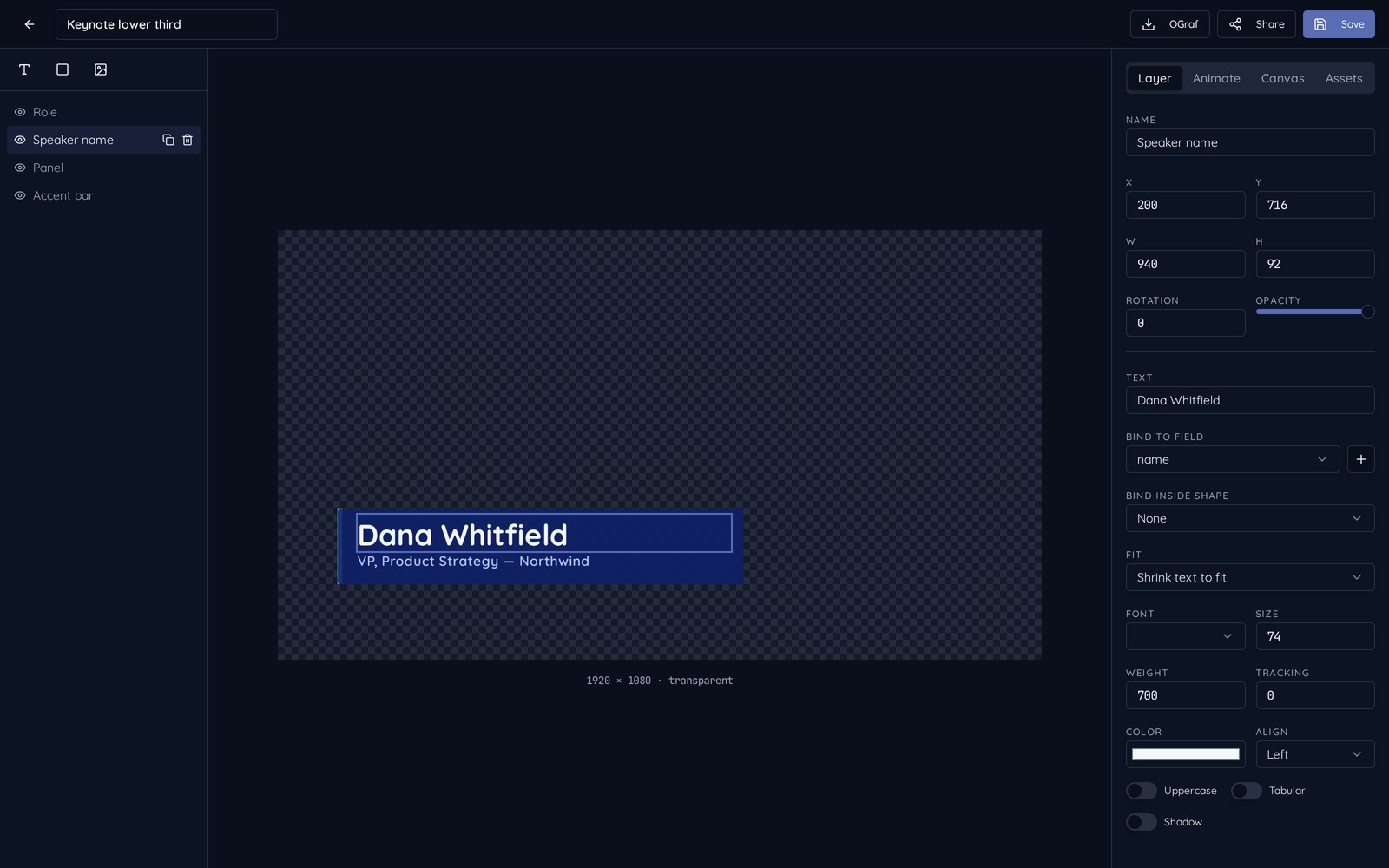
A template is a stack of layers on a canvas: text, images, shapes, tickers, countdowns, lists and scoreboards. The layer list is on the left, the canvas in the middle, and the inspector for the selected layer on the right.
Layers
- Drag layers in the list to change what sits in front of what.
- Select a layer on the canvas to move or resize it; the inspector has exact numbers if you need them.
- Move the whole design at once with the design position controls — useful for shifting a lower third up above a burned-in caption.
Smart text boxes
Long names should never break a design. Each text layer can be told what to do when the copy is too long:
- Shrink to fit — the type scales down until it fits the box. Best inside a fixed-width bar.
- Grow the box — the shape behind the text widens to match. Best for name plates.
- Clip — leave it as designed and cut off the overflow.
Animation
The animation pane works like a slide build: each layer gets an entrance, a delay and a duration, and they play in list order when the graphic comes on air. Set a layer to “with previous” to have two things move together.