Refresh rather than rebuild
Update from Canva downloads the latest artwork while retaining the saved graphic's placement and transitions.

Canva & PowerPoint
Import Canva designs and presentations or PowerPoint files as one slides graphic. Keep the original timing, or advance manually with the next slide waiting in Preview.

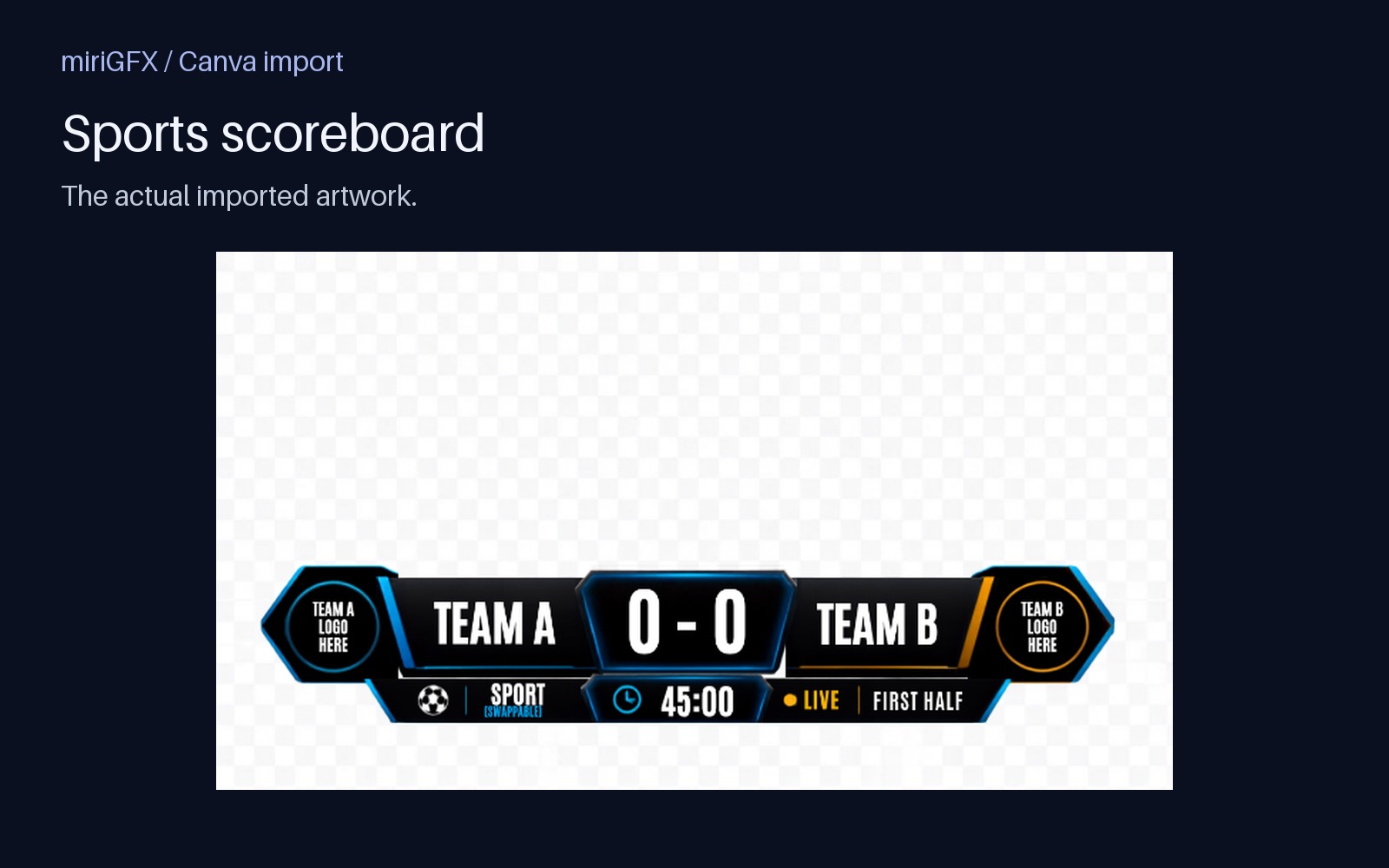
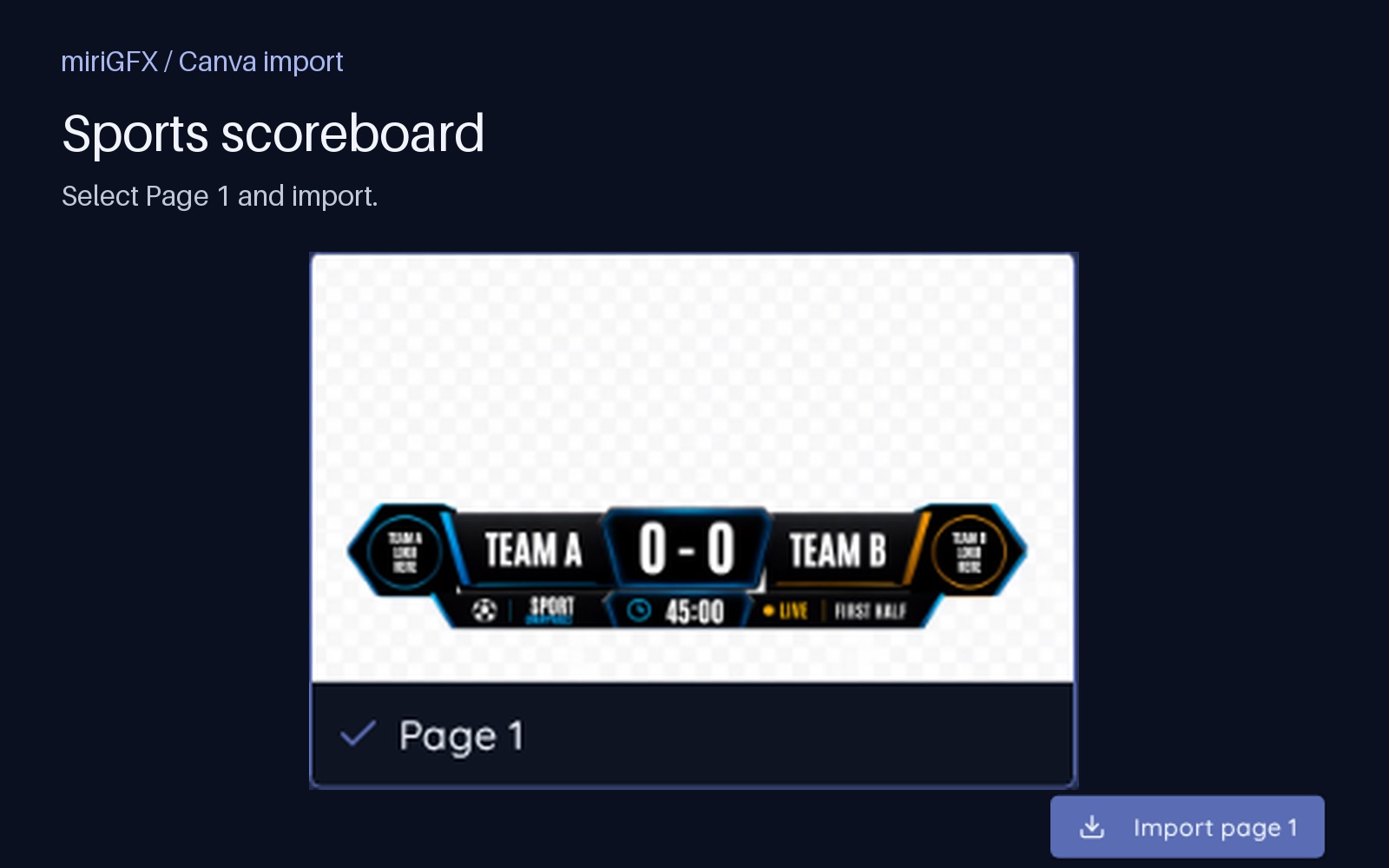
The example above selects page 1 of Sports scoreboard templates. Clicking Import page 1 saves a PNG graphic to the organization and opens it in the editor. Below is that actual imported page—not a mockup.
For a PowerPoint deck, use Import File → Import a PowerPoint and upload .pptx. Select the slides and choose manual or automatic advance. Speaker notes import with the slides; PowerPoint animations and embedded video do not. No Canva connection is needed.
Refresh artwork in one click, keeping its place and transitions.
Run slides on their own clock or click through them live.
PowerPoint notes come along for the Confidence Monitor; Canva notes can be added manually.
Read the guide
Importing artwork & presentations →Connect your own Canva account to browse designs, or upload a .pptx from the separate PowerPoint import. Choose a graphic/slides import for manual control, or a whole-presentation video export when that fits the show.
The audience sees artwork on Program, not import tools or speaker notes. A slides graphic can follow its timing or advance manually, with the next slide prepared in Preview.
Update from Canva downloads the latest artwork while retaining the saved graphic's placement and transitions.
PowerPoint slides and notes are imported together. Review slide timing and notes in the graphic, then use Confidence Monitor for the presenter.